Import & Export Connections
Back Up & Restore Everything (Recommended)
The fastest way to safeguard all your connections and groups is the one-click backup in the Connection Manager.
- Open the Connection Manager
- Click Export All (top-right, visible on every tab)
- Choose a file location — DbClone suggests
DbClone-backup-YYYYMMDD.json - (Optional) Enter a password to encrypt the backup
- Click OK
To restore, click Import All, select your backup file, and enter the password if it was encrypted.
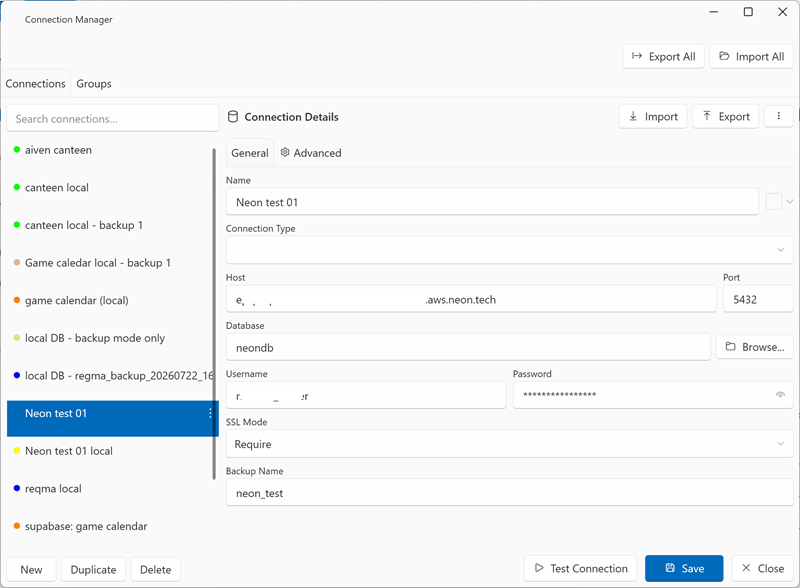
Backup encryption
- Leave the password empty for a plain JSON backup (local use only).
- Enter a password to encrypt the file with AES-256 (PBKDF2-SHA256 key derivation). Encrypted backups are safe to store or share.
- On import, DbClone detects encryption automatically and prompts for the password.
Keep your password safe
An encrypted backup cannot be recovered without its password. Store the password separately from the backup file.
Plain exports contain passwords
An unencrypted backup stores connection passwords in plain text. Handle such files securely and prefer encryption when sharing.
What is included
A backup contains every connection (host, port, database, username, password, SSL mode, color, notes) and every group (name, source/destination links, color, notes). Importing merges with existing data — entries with the same ID are updated, new entries are added.
Export a Single Connection
Export a connection string to share with team members or use in another tool.
- Select a connection and click Export
- Choose a format — Npgsql/.NET, PostgreSQL URI, libpq/psql, JDBC, SQLAlchemy (Python), Prisma, Node.js (pg), Supabase URI, Supabase (env), or Environment Variable
- Optionally tick Set as default for clipboard — the quick Export to Clipboard action (connection list menu) uses this format
- Choose the output:
- Copy to Clipboard
- Save to File (with Browse... to pick a location)
- Click Export — a live preview shows exactly what will be exported
Passwords in exports
Exported connection strings include the password in plain text. Handle exported files securely.
Import a Single Connection
Import a connection from a pasted connection string.
- Click Import in the Connection Manager
- Paste your connection string — the format is detected automatically (or click Detect Format)
- Review the parsed values preview (host, port, database, user, SSL mode)
- Click Import — the connection is added as a new entry
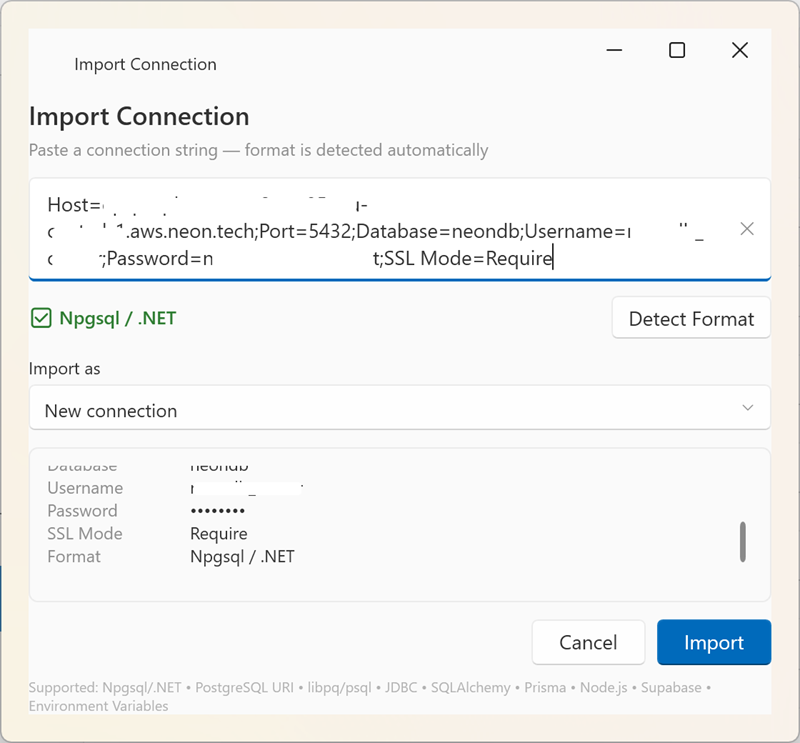
Supported Import Formats
| Format | Example |
|---|---|
| PostgreSQL URI | postgres://user:pass@host:5432/db |
| Npgsql / .NET key-value | Host=host;Port=5432;Database=db;Username=user;Password=pass |
| libpq / psql | host=host port=5432 dbname=db user=user password=pass |
| JDBC | jdbc:postgresql://host:5432/db?user=user&password=pass |
| Node.js (pg) | pg://user:pass@host:5432/db |
| Supabase URI / Supabase (env) | Supabase connection strings and environment snippets |
| Environment Variable | DATABASE_URL=postgres://user:pass@host:5432/db |
Export-only formats
SQLAlchemy (Python) and Prisma formats are available when exporting a connection, but cannot be imported.
Bulk Operations
To move multiple connections at once, use Export All / Import All (see the backup section above). The backup file is a JSON document containing all connections and groups: