First Copy — Quick Start
This guide walks you through cloning a database in under 5 minutes.
Step 1: Add Source Connection
- Click Connections in the toolbar
- Click New
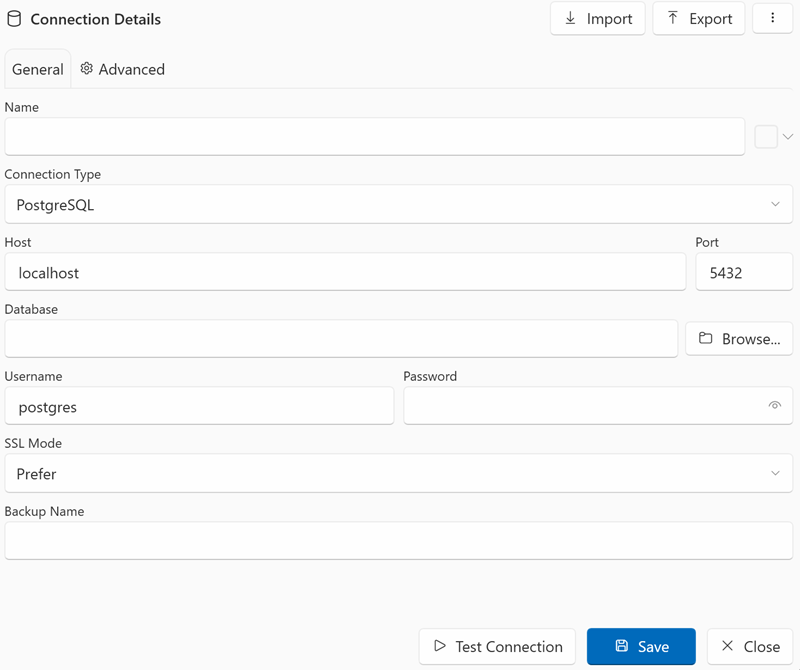
- Fill in the fields (or import a connection string via Import from Clipboard):
- Host:
your-server.example.com - Port:
5432 - Database:
my_app_db - Username:
postgres - Password:
••••••••
- Host:
- Click Test Connection to verify the connection
- Click Save
Step 2: Add Destination Connection
Repeat the same process for your destination database.
Destination must exist
DbClone does not create the destination database itself. Create an empty database on your target server first (e.g. CREATE DATABASE my_app_clone;).
Don't know the database name yet?
You can leave the Database field empty and pick the database later from the destination panel — see Table Overview (Destination). Backup mode creates its own timestamped database automatically.
Step 3: Select Source & Destination
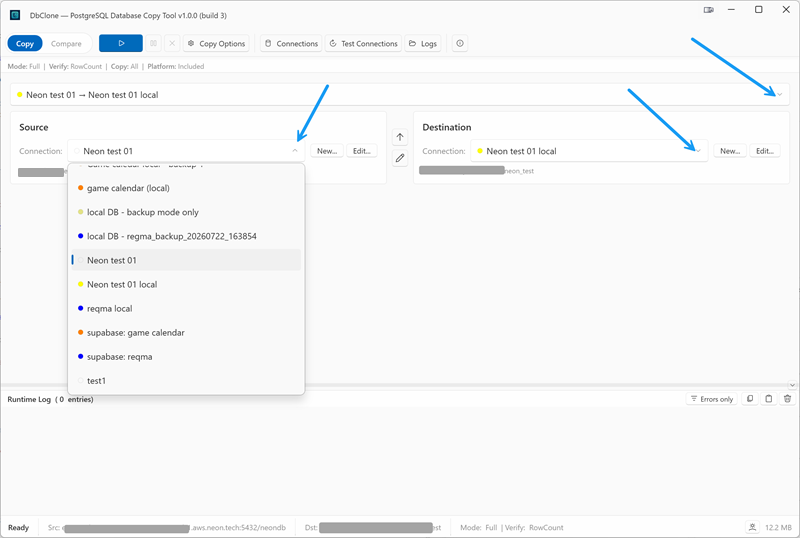
Back on the main screen, select your source and destination from the dropdowns. See The Main Window for a walkthrough of all the panels.
Step 4: Start the Copy
- Leave the default settings (Full mode, all objects selected)
- Click the Start Copy button (▶) — or press Ctrl+S
- If the destination has existing data, DbClone will ask for confirmation before cleaning it

Step 5: Review Results
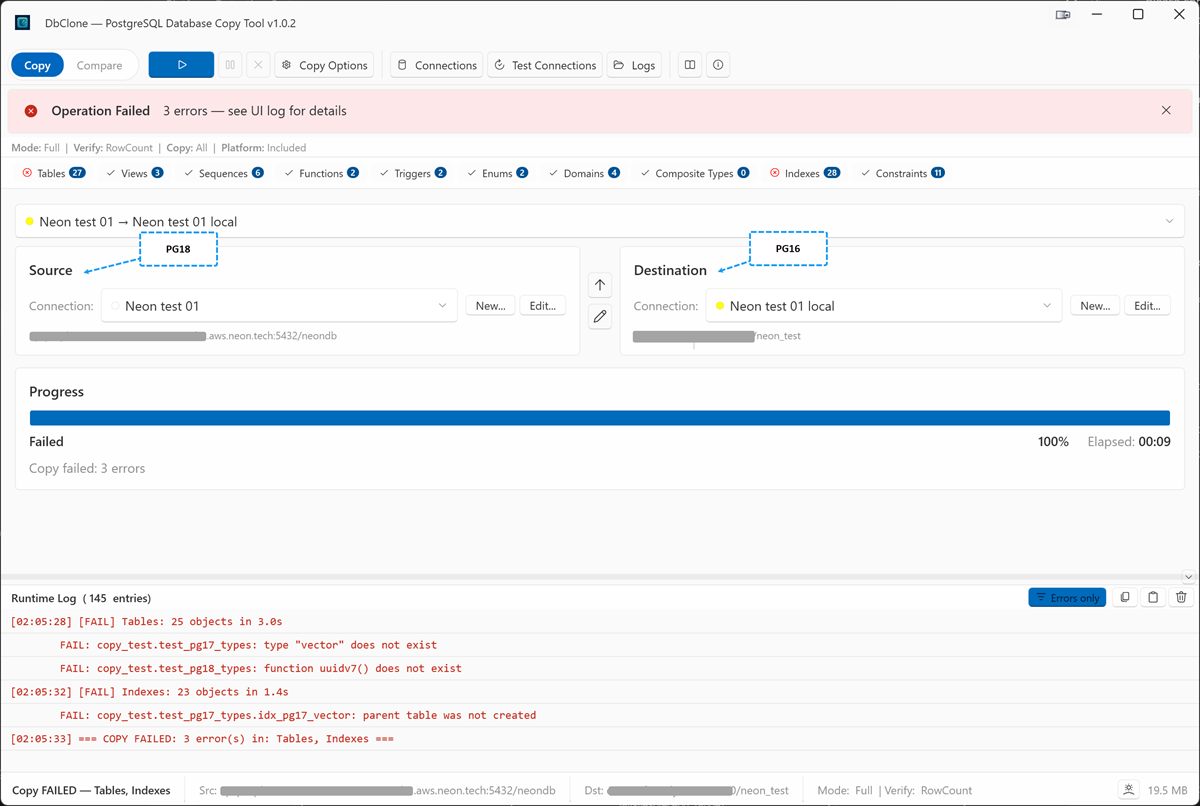
When complete, you'll see:
- ✅ Green status for successful stages
- A summary of objects copied (tables, functions, views, etc.)
- Any warnings or errors in the log panel
What's Next?
- Copy Modes — learn about Resume, Update, and Backup modes
- Options — customize what gets copied
- Troubleshooting — if something went wrong