Table Overview (Destination)
The destination connection panel includes a read-only overview of all tables currently on the output database:
Click View… to open the Table Overview dialog. It shows what is actually on the destination right now — useful to check what a previous copy left behind before you clean or overwrite it.
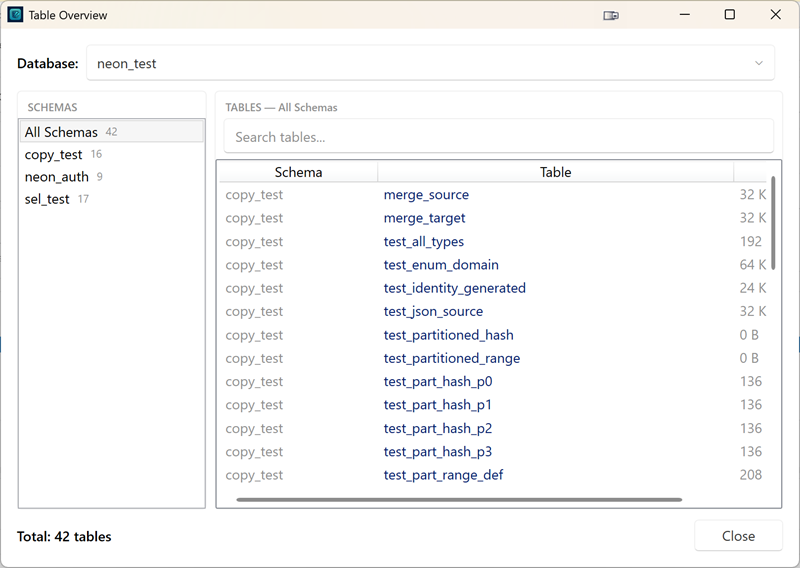
What the dialog shows
- Database dropdown (top) — the database of the destination connection; see Picking a database below
- Schema tree (left) — an All Schemas entry plus one entry per schema, each with its table count
- Table list (right) — Schema, Table, and Size columns; every column is sortable (sort by size to find the largest tables)
- Search — filter tables by name or schema
- Total count — number of tables in the current view
Sizes are estimates from the database catalog (pg_total_relation_size) — instant to read, no table scans. Tables whose size cannot be read show a blank cell and sort last.
The overview is strictly read-only: it never changes anything on the destination.
Picking a database when none is configured
If the destination connection has no database name, the destination panel shows (no database). Open the overview anyway: the Database dropdown lists all databases on the server, and picking one applies it directly to the destination connection — no need to edit the connection in the Connection Manager first.
Typical uses
- Inspect the destination before a Full copy to see exactly what the cleanup will drop
- Verify the contents of a previous copy or backup restore
- Find the largest tables on the destination
Copy modes still require a destination database
Full, Resume, and Update cannot run without a destination database name. Connections without a database can only be used for Backup mode (which creates its own timestamped database).