Installation
Download
Download the latest installer from GitHub Releases:
DbClone-Setup-x.y.z.exe— standard installer with Start Menu shortcut
Install
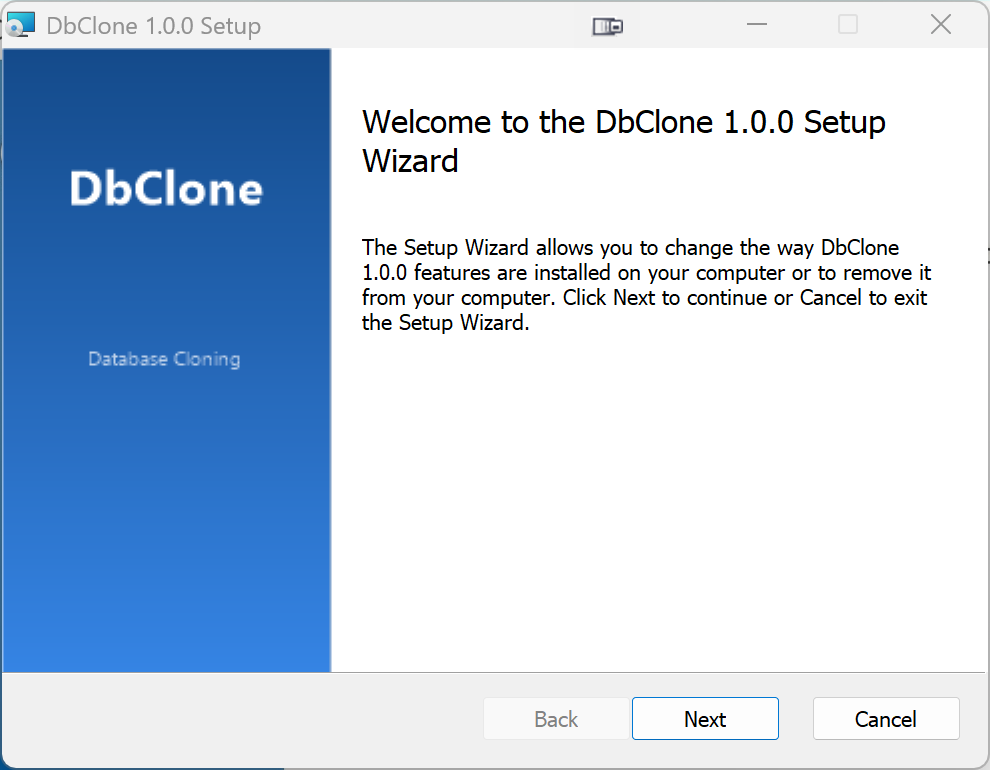
Run the installer and follow the prompts. Admin rights are required — DbClone installs for all users to C:\Program Files\DbClone.
Windows SmartScreen Warning
On first run you may see a "Windows protected your PC" dialog from Microsoft Defender SmartScreen. This happens because the installer is not code-signed with a purchased certificate — it does not mean the software is unsafe.
To proceed:
- Click "More info"
- Click "Run anyway"
This is standard behavior for open-source applications distributed outside the Microsoft Store. You can verify the file integrity using the SHA-256 checksum published on the Releases page.
No .NET runtime needed
DbClone ships self-contained. You don't need to install .NET separately.
Silent Install
The installer is a WiX Burn bootstrapper. For deployment scripts or automation:
DbClone-Setup-x.y.z.exe /quiet      :: fully silent, no UI
DbClone-Setup-x.y.z.exe /passive    :: progress UI only, no interaction
To install the MSI directly without the wizard:
Auto-Update
DbClone checks for updates automatically on startup (after a 3-second delay). When a new version is available, a non-blocking banner appears at the top of the main window with Update and What's new buttons. Click Update to download and install, or dismiss the banner to continue working.
Updates are applied in-place — no uninstall needed.
You can also check manually: click the About button (ⓘ icon) in the toolbar, then click Check for Updates in the About dialog.
Uninstall
Use Windows Settings → Apps → DbClone → Uninstall, or run the uninstaller from the install directory.
Your saved connections and settings are preserved in %LOCALAPPDATA%\DbClone\ and are not removed on uninstall.