Managing Connections
DbClone stores your database connections locally so you don't have to re-enter credentials every time.
Connection Manager
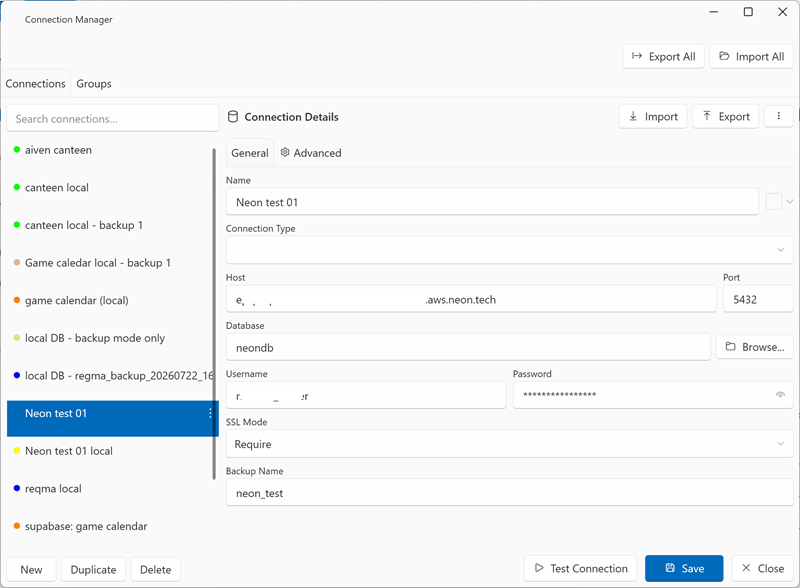
Open via the Connections button in the toolbar.
Adding a Connection
Click New and fill in:
| Field | Description | Example |
|---|---|---|
| Name | Display name (optional, auto-generated as host/database if empty) |
Production DB |
| Connection Type | Hosting platform — select manually, or auto-detected when importing a connection | Supabase / Aiven / Neon / PostgreSQL |
| Host | Server hostname or IP | db.example.com |
| Port | PostgreSQL port (auto-filled when you change the Connection Type) | 5432 |
| Database | Database name | my_app |
| Username | Login user | postgres |
| Password | Login password | •••••••• |
| SSL Mode | Connection security (auto-filled when you change the Connection Type) | Prefer / Require |
Connection Type Auto-Detection
When you import a connection (from clipboard or file), DbClone detects the platform from the hostname pattern:
| Hostname Pattern | Detected Platform | Default Port | Default SSL |
|---|---|---|---|
*.supabase.co |
Supabase | 5432 | Require |
*.aivencloud.com |
Aiven | 11521 | Require |
*.neon.tech |
Neon | 5432 | Require |
| Anything else | PostgreSQL (vanilla) | 5432 | Prefer |
When you change the Connection Type dropdown manually, the port and SSL mode are set to that platform's defaults. You can override these values after the auto-fill.
Paste a URI
To add a connection from a full connection string, use Import from Clipboard (in the connection list's ⋮ menu) or the Import button in the form header. DbClone parses URIs and key-value strings, fills all fields, and auto-detects the platform:
Testing a Connection
Click Test Connection to verify the connection works. DbClone will:
- Attempt to connect
- Display the PostgreSQL version on success
- Show the error message on failure
Color Coding
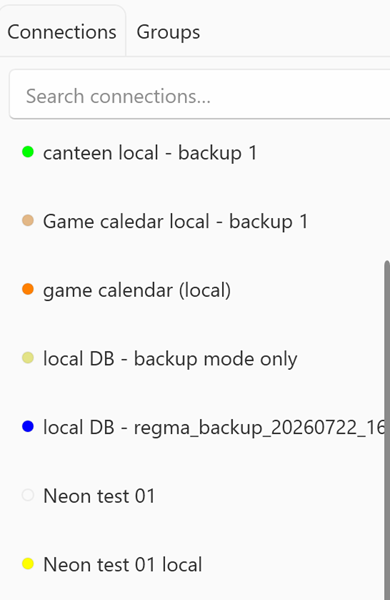
Assign a color to each connection for quick visual identification. This is especially useful to distinguish production (red) from development (green) databases.
Connection Groups
A group is a named source → destination pair (with an optional color and notes). Groups let you switch both connections at once from the dropdown above the source/destination panels on the main screen.
- Use the buttons between the source and destination panels to create a group from the current connections or edit the current group
- In the Connection Manager's Groups tab you can create, edit, and delete groups
- If you leave the group name empty, it is auto-generated as
{source} → {destination}
Editing & Deleting
- Select a connection and modify the fields, then click Save to update
- Click Delete to remove a connection — this deletes immediately, without confirmation
- Click Duplicate to create a copy of the current connection named
{name} - Copy
Browse Databases
Click Browse... next to the database field to discover databases on the current server. DbClone connects with the current host/port/credentials and lists all available databases. Select one to fill the database field automatically.
Where Are Connections Stored?
Connections are saved in:
Passwords are encrypted using Windows DPAPI (Data Protection API) — they can only be decrypted by the same Windows user on the same machine.